
This guide covers FocusPilot goals and their tasks. You will create a goal by typing or talking, give its tasks a start time and a length, plan them in the Calendar layout and use the weekly review to see what you closed last week and what keeps slipping.
How goals and tasks fit together
A goal is the outcome you want, and its tasks are the steps toward it. Every goal has a category, Professional, Personal or Health, and can carry a deadline and a priority from 1 to 4.
Each task has its own day. Tasks that belong to no goal wait in the Inbox.
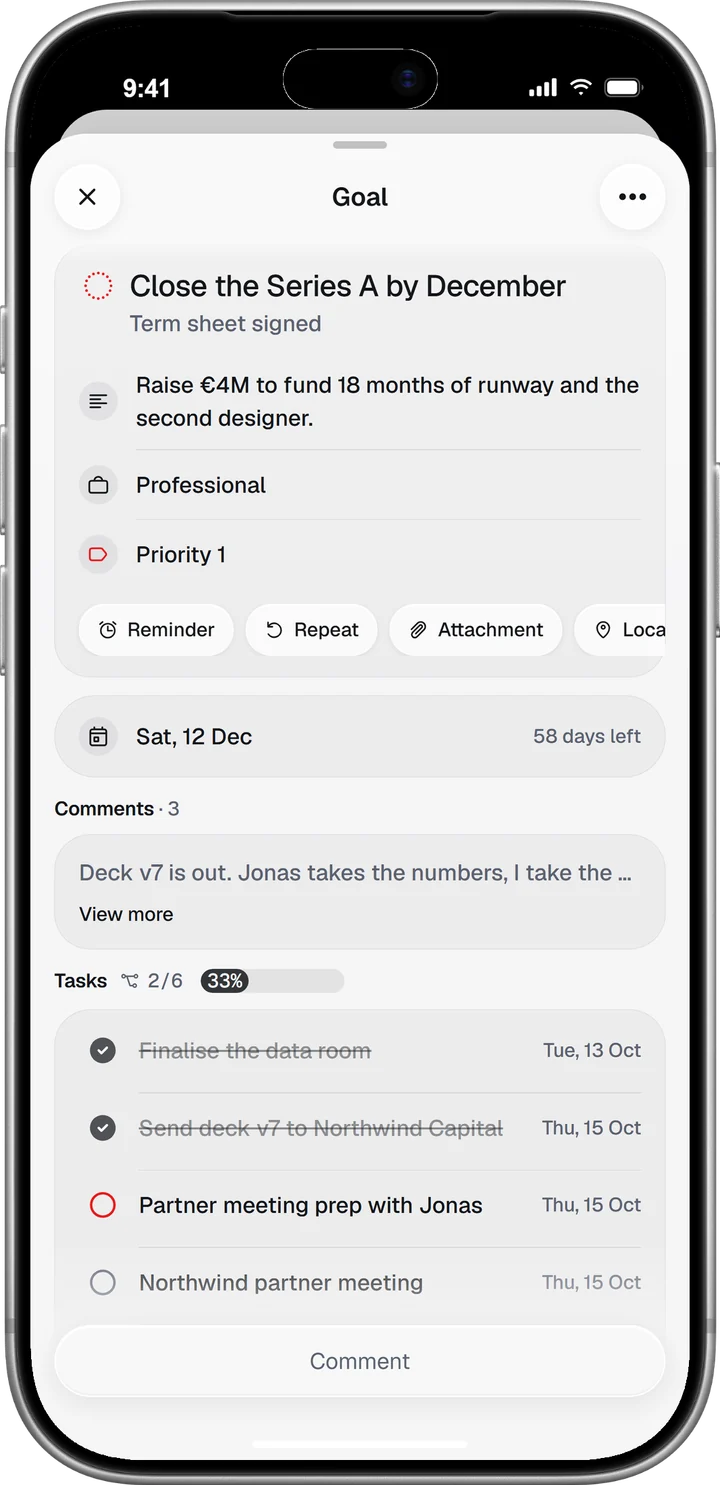
The Active list starts with goals due within a month. Below them, Repeating holds goals with a repeat rule of their own, and Long-term holds goals due a month or more away or with no deadline at all. A long-term goal moves up by itself once its deadline is less than a month off.
Tap a task’s circle twice to close it: the first tap marks it in progress, the second marks it done. Anything whose deadline passes while it is still open moves to Missed, where you can pick it up again.
The row at the top of Goals holds the ⋯ menu, the status tabs and the black +. While the Inbox holds tasks it gets a tab of its own, and Completed moves into the ⋯ menu.
Create a goal by typing or talking
Tap the black + at the top right of Goals. Extract goals opens with the keyboard up. Type your notes the way you would say them, with a deadline and first steps if you know them. To talk instead, hold the mic and dictate.
The + next to the field adds one attachment. Camera scans paper notes, up to four pages. Photos takes a picture from your library, and Files takes a PDF, a Word (.docx) file, plain text, Markdown or CSV.
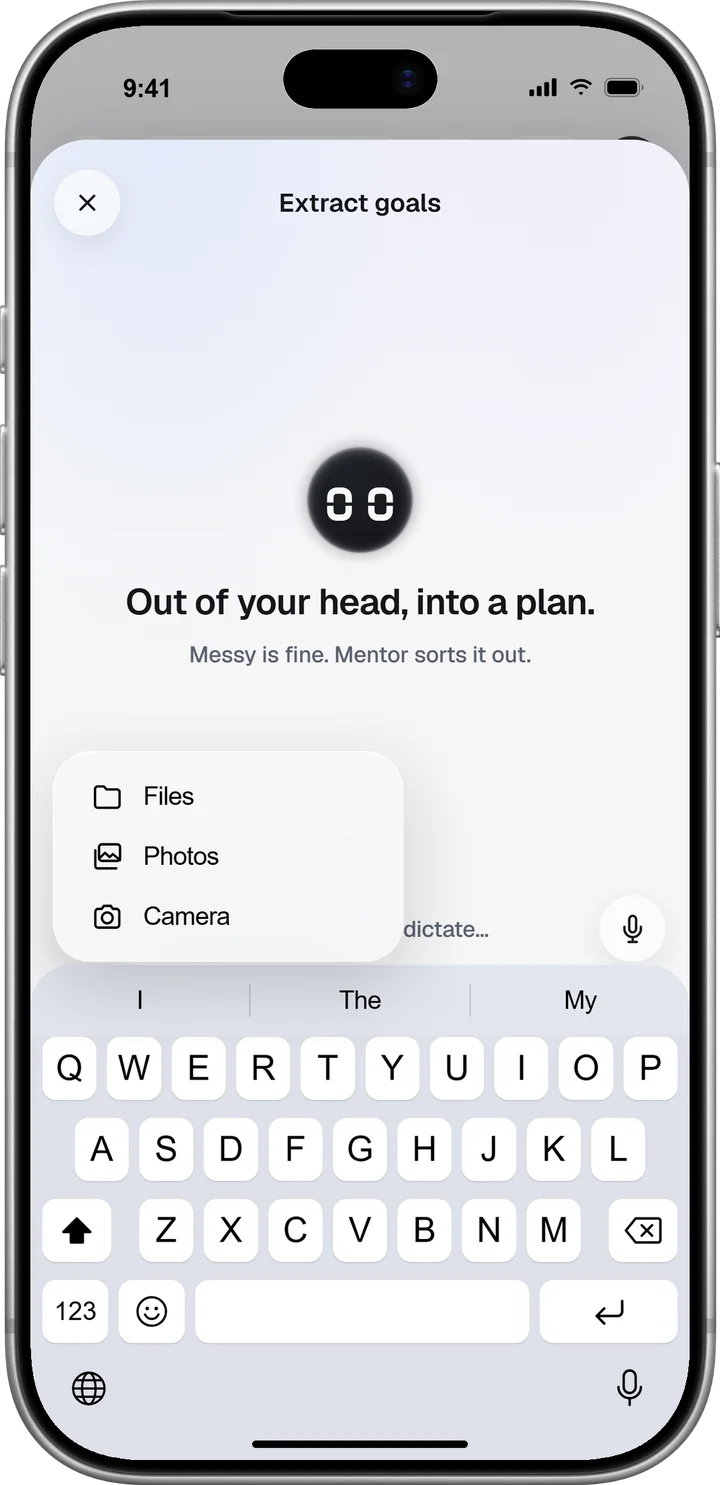
Send it, and Mentor opens a review sheet with the goal, its category, its deadline and its tasks. Anything Mentor filled in by itself is marked Filled in, and anything it was unsure about is marked Check this.
Take out what is wrong. Nothing is saved until you tap Add.
Extract goals needs Share Goals with AI to be on, under Preferences in your profile. With it off, you can still add goals by hand.
To fill in the fields yourself, tap the + at the right end of the tab bar and choose Goal, or tap Add goal in the Goals ⋯ menu. A card opens on the keyboard: name the goal and pick its category, and the deadline tag reads Today until you change it.
The + on the card holds the other fields, such as priority, a reminder or a description. Tap the arrow to save it; the card then clears for the next goal, and a tap on the dimmed screen behind it closes it.
Give tasks a start time and a length
Open a goal and tap Add task. Type the task, then tap the Deadline tag and pick a day; in the same sheet, Time sets when the task starts.
Switch on Add duration and set the length on the wheel, in 15-minute steps up to eight hours. Save each sheet, then tap the arrow to save the task, and the card clears for the next one.
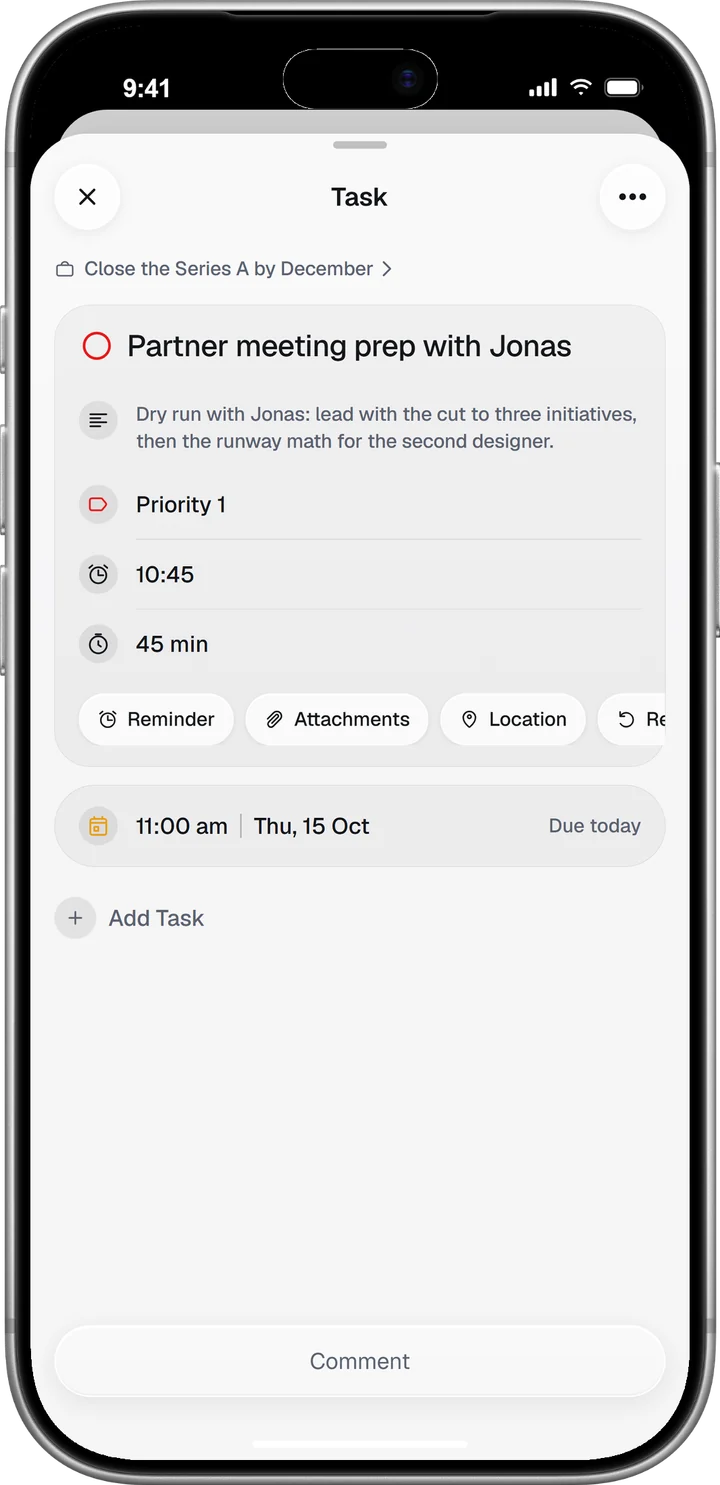
For a task that comes back every day or every week, the Repeat tag sits next to Deadline.
The task row shows the length, and on the day itself the start time as well, for example 45m and Today, 11:00 am. A task without a time shows only its day. If you plan in blocks, time blocking covers which work should get the first one.
Plan the week in the Calendar layout
Open the ⋯ menu, tap Display and pick Calendar. The current week runs across the top and opens into the whole month. Below it, every day from today follows in order with its goals and tasks, and each task names the goal it belongs to.
Tap a day’s date line to start a goal that is due that day. Tasks here swipe and long-press the same way they do in the List layout, and a repeating task appears on every day it occurs.
Tag what slipped while the week is running
Open the ⋯ menu and tap View log; the row appears once this week holds something closed or missed. Under Not closed, tag a miss with Underestimated time, Deprioritized or Wrong day for it. Tag during the week itself, because the log only tags the current week. When the same reason lands on the same goal in two or more weeks, the weekly review shows it as a pattern.
Run the weekly review
Open the ⋯ menu and tap Weekly review. It covers last week, Monday to Sunday. The large number is your hit rate, with the count under it, for example 19 of 24 closed. By category splits that count into Professional, Personal and Health, and Patterns lists the work that kept slipping.
The row only shows once last week holds something closed or missed, so it will not be there in your first week. What counts as a hit or a miss, and when something becomes a pattern, is in How the weekly review and the weekly log work.
Turn the review into next week’s plan
Start with the patterns. If a goal keeps coming back under Wrong day for it, move its tasks to days that have room. Under Underestimated time, give its tasks a longer duration, so the Calendar shows how full those days really are.
Then look at the category with the lowest share and count the active goals in it. If one of them cannot get time next week, pause it from the goal’s menu, and its tasks leave the layouts until you resume it. The Eisenhower matrix helps when you have to choose which.
Last, switch to the Calendar and place next week’s tasks, starting with the goal that counts most this month. The weekly planning guide has a 30-minute routine for this, and the review gives you its first ten minutes.




