
This FocusPilot quick start takes you through your first week in the order you will meet it: the setup questions and the free trial, Home, your first goals and tasks, Today’s Read, the Mentor, the journal and your first Focus Score.
What is FocusPilot?
FocusPilot is the performance tracker for your work, on iPhone and Android, in English and German. It checks each day against the goals you set and shows you what to change before a goal slips.
It reads your goals and tasks, your journal, your morning answers and your Mentor chats together, plus your health data if you connect it, and shows you the next step. Each day also gets a Focus Score from 0 to 100, built from your tasks, your focus sessions and the clarity you report each morning.
There are four tabs: Home, Goals, Journal and Insights. The + at the right end of the tab bar starts something new from any of them, and your picture at the top right of Home opens your Profile.
What can you do with FocusPilot?
Plan goals and tasks
A goal is the outcome you want; its tasks are the steps, each on its own day. Type, say or scan a goal and the Mentor breaks it into tasks. More in Goals and the weekly review.
Read your day with Today’s Read
A few questions each morning, then a read of your day and the one move to make. More in Today’s Read and Plan My Day.
Talk things through with the Mentor
The chat in FocusPilot. It answers from your goals, your recent days and your journal, so you can skip the background. More in the Mentor guide.
Get a Mentor Brief
When several of your sources point to the same problem, the Mentor writes a Brief with one change to make and an action plan for Goals. More in the Mentor Brief guide.
Keep a journal
Check in with three quick questions, then write, record your voice or add photos, on one of eight kinds of page from a reflection to a decision. More in the Journal guide.
Track your Focus Score in Insights
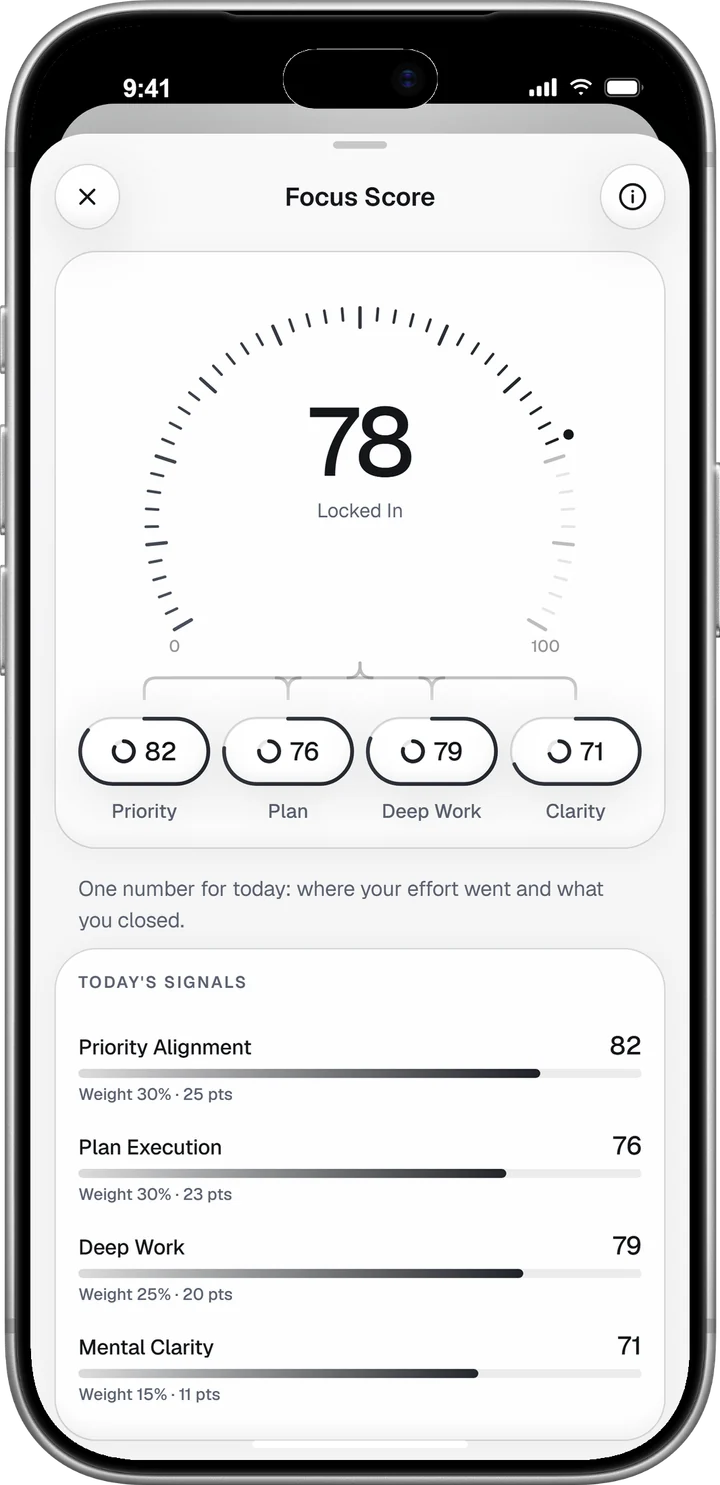
Each day is scored from four parts: priority, plan, deep work and clarity. More in Insights and your Focus Score.
Set up FocusPilot
Setup asks one question per screen and takes a few minutes. Your answers stay on the phone until you save your plan at the end, which creates your account.
Before you start
Download FocusPilot from the App Store or Google Play; it is free to download. Have one goal in mind for the next four weeks. On the first screen, the language button at the top right switches between English and German. Tap Get Started, or Sign In if you already have an account.
Answer a few questions about your week
FocusPilot asks your first name, your birthday and your sex, which you can skip, and where you heard about the app. Then come the questions that set your starting point: what you do, what FocusPilot should show you, how many hours you work in a week, how productive you feel right now and what trips you up most.
Name the one goal you most want to move
Type it in your own words, as an outcome you could tick off one day. “Close the Series A by December” gives the app far more to plan around than “fundraising”.
Then say how many hours a week already go to it. The next screen puts that next to your working week, for example 6 of 50 hours. Tap Change that to go on.
Connect Apple Health or Health Connect
Continue opens your phone’s own permission sheet for Apple Health on iPhone or Health Connect on Android. Allow it or decline it; setup carries on either way.
On iPhone, FocusPilot reads sleep, steps, resting heart rate and heart rate variability. On Android, it reads sleep and steps.
Last comes Have a referral code? A code only counts if you enter it here, before your account exists. Without one, tap Continue.
See where you stand and commit to a target
Where you stand shows a starting Focus Score, labelled as an estimate, and the four answers behind it. Below them are a weekly target for your goal, dated four weeks out, and a first note from the Mentor. From your first day on, the score is measured from what you do.
Tap Continue. The target becomes a sentence, such as “I’ll give my goal 9 hours a week.” Press and hold Hold to commit until it reads Committed.
Choose when FocusPilot checks in
When should we check in? offers five windows, from early morning to late evening. Pick one and tap Turn on check-ins, or tap Not now.
Save your plan
Save your plan creates your account with Apple (on iPhone), Google or your email address. With email, you set a password and confirm the address with a six-digit code.
FocusPilot then adds your goal to Goals with a deadline four weeks out and three first steps: one for today, one in two days and one in four days. You can change all of it later.
Start the free trial
When a free trial is on offer, the plans screen lays it out as a timeline: access from today, a reminder the day before billing if notifications are on, then the billing date and the amount. No payment due now stands above the button.
Prices and the trial length come from the App Store or Google Play, and you see both before you confirm. Cancel before the billing date and you are not charged.
Day one on Home
When setup is done, FocusPilot opens on Home.
Know what each part of Home is for
Home is your day at a glance, from the top down:
- The top bar shows your streak and your picture, which opens your Profile. The week strip under it puts a check on each day you kept your streak.
- Goal Alignment has a ring each for Professional, Personal and Health, filled by the share of this week’s planned work you have done there.
- Today’s Read and Mentor Brief open your morning read and your Brief.
- For today lists everything due today, plus the day’s habits.
- Activity counts what you did today and opens Insights.
- Trajectory shows where your work is heading. Its first read needs a week: tasks scheduled on 7 of the last 14 days and three Today’s Reads.
- Focus sessions starts a Timer, a Stopwatch, a Counter or Audio.
- Journal starts a check-in, a reflection or a page to sort your thoughts.
- Timeline and Streak show what you logged today and how many days in a row you have done real work.
The bar above the tab bar, with the Mentor’s face in it, opens a chat with the keyboard up.
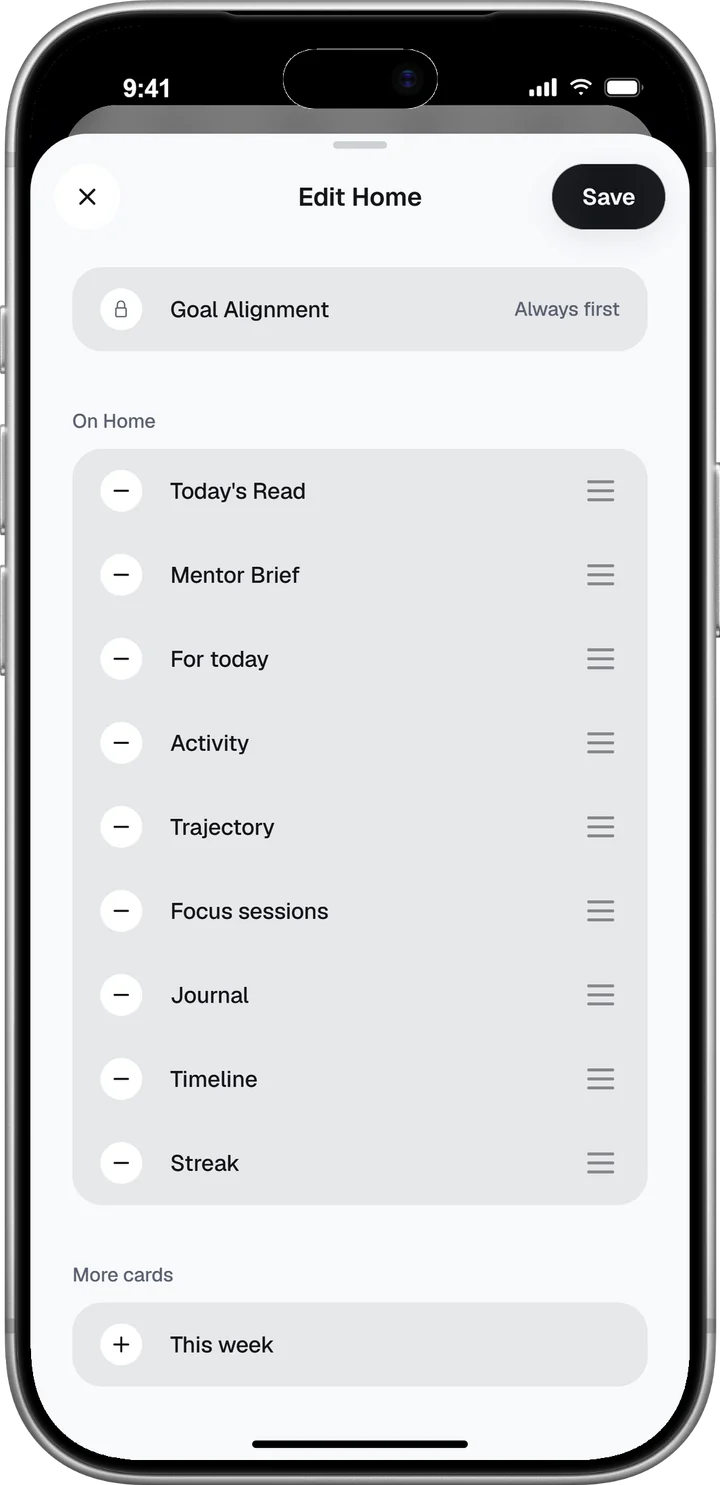
To reorder Home, tap Edit Home at its foot. Hold and drag a card to move it, or remove it with the minus button. This week, a day-by-day view of your week, waits under More cards.
Tick your first step in For today
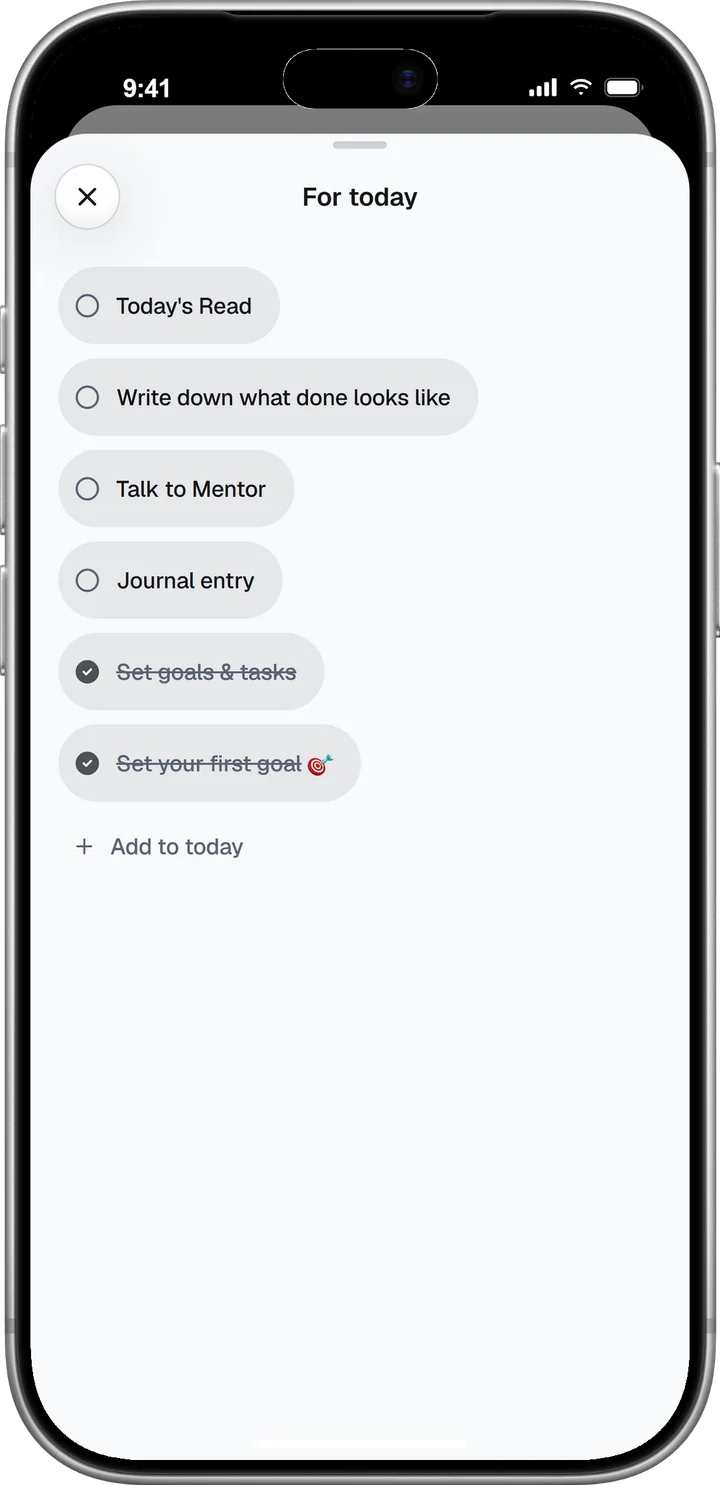
Tap the For today card to open the full list. Your goal’s first step is there, next to the day’s habits: Today’s Read, Set goals & tasks, Talk to Mentor and Journal entry. A habit ticks itself once you have done it, and tapping it takes you to where it gets done.
Tap your step’s circle twice: the first tap marks it in progress, the second marks it done. Add to today adds a quick line of your own. That line stays on your phone, and its ⋯ menu turns it into an Inbox task or a goal.
Start anything with the + button
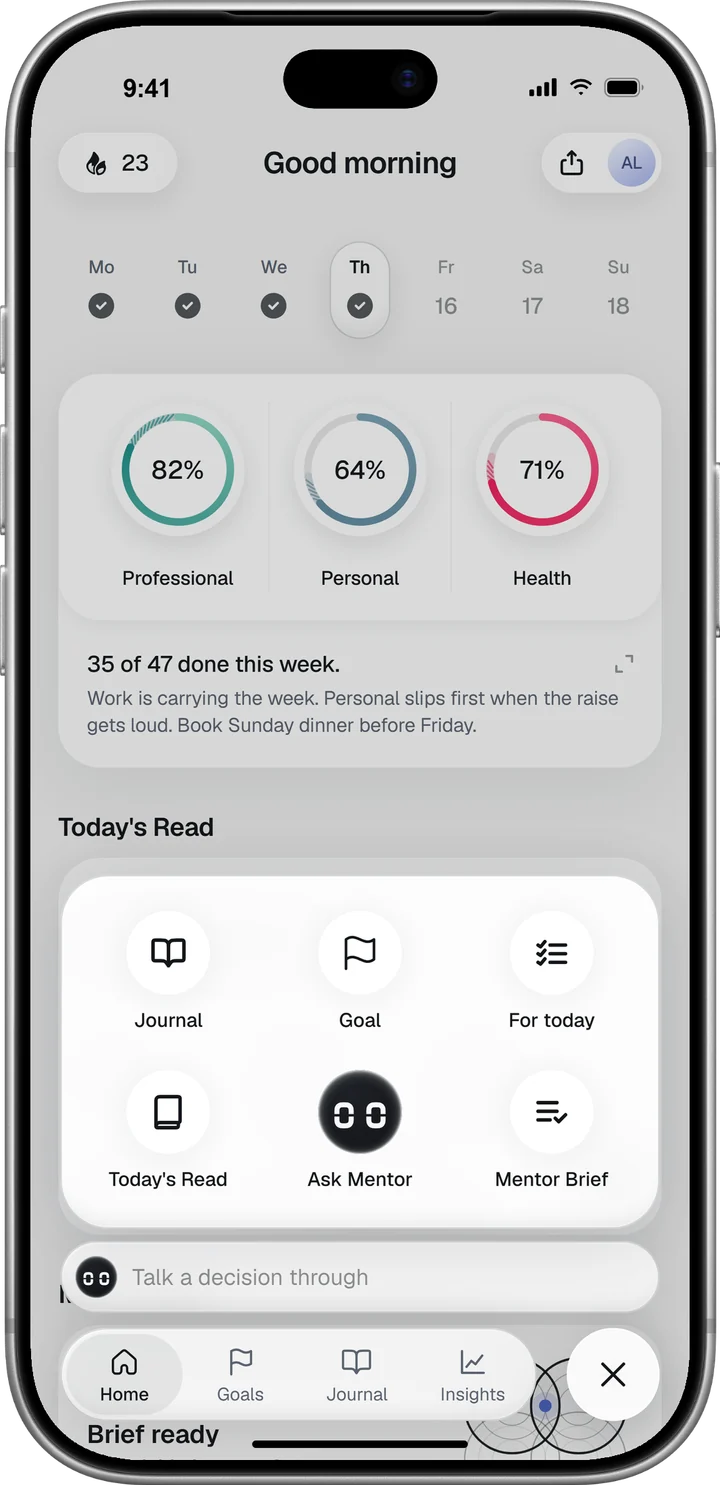
The + at the right end of the tab bar opens six shortcuts on every tab: Journal, Goal, For today, Today’s Read, Ask Mentor and Mentor Brief.
Find your first seven days in Goals
Goals also holds a starter goal, Your first seven days, with one short move a day, from setting your first goal to setting up next week. The first is ticked already, because you named a goal during setup. The app ticks the others once it can see the work, and tapping a move takes you to where it gets done.
Add goals and tasks
Add a goal by typing, talking or scanning
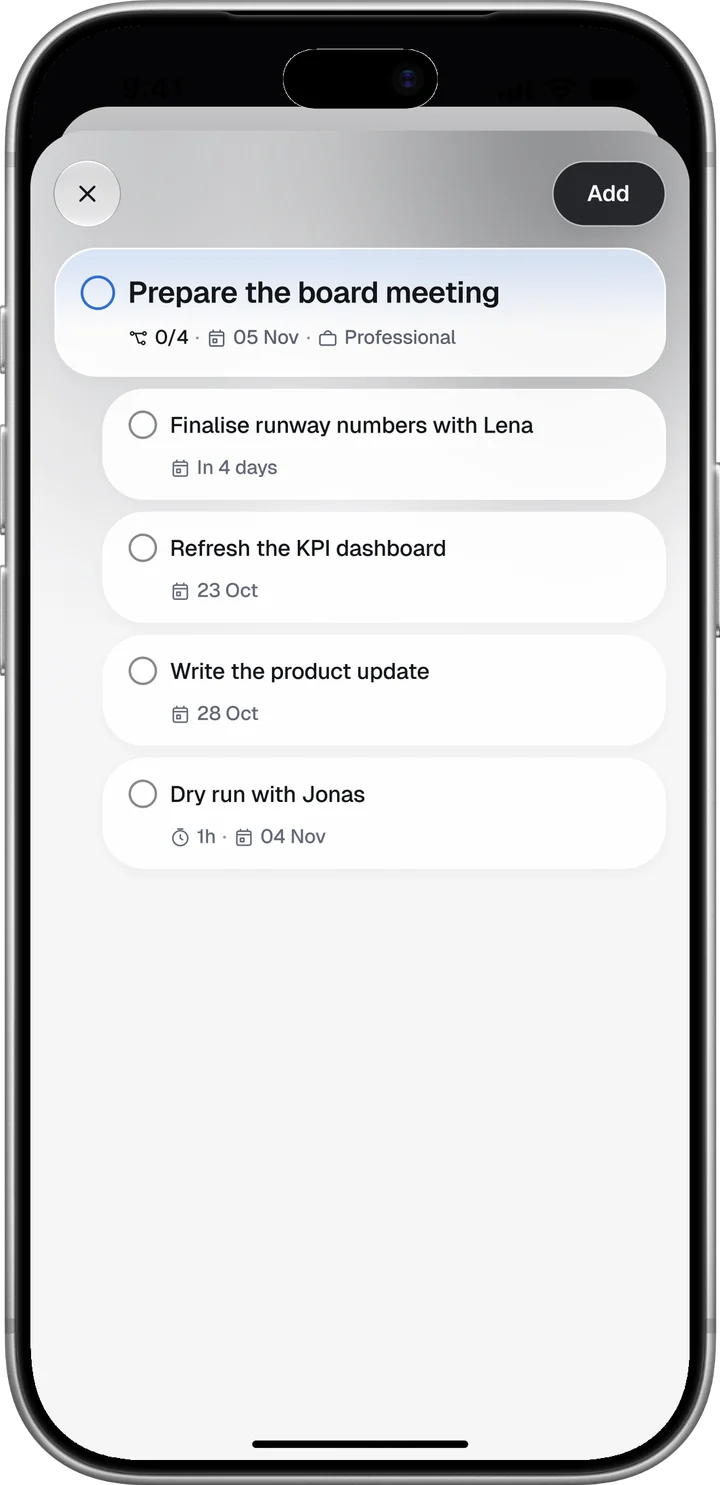
In Goals, tap the black + at the top right to open Extract goals. Type or paste your notes, or hold the microphone to dictate. For a page or a document, tap + and choose Camera to scan paper, Photos, or Files for a PDF, a Word document or a text file.
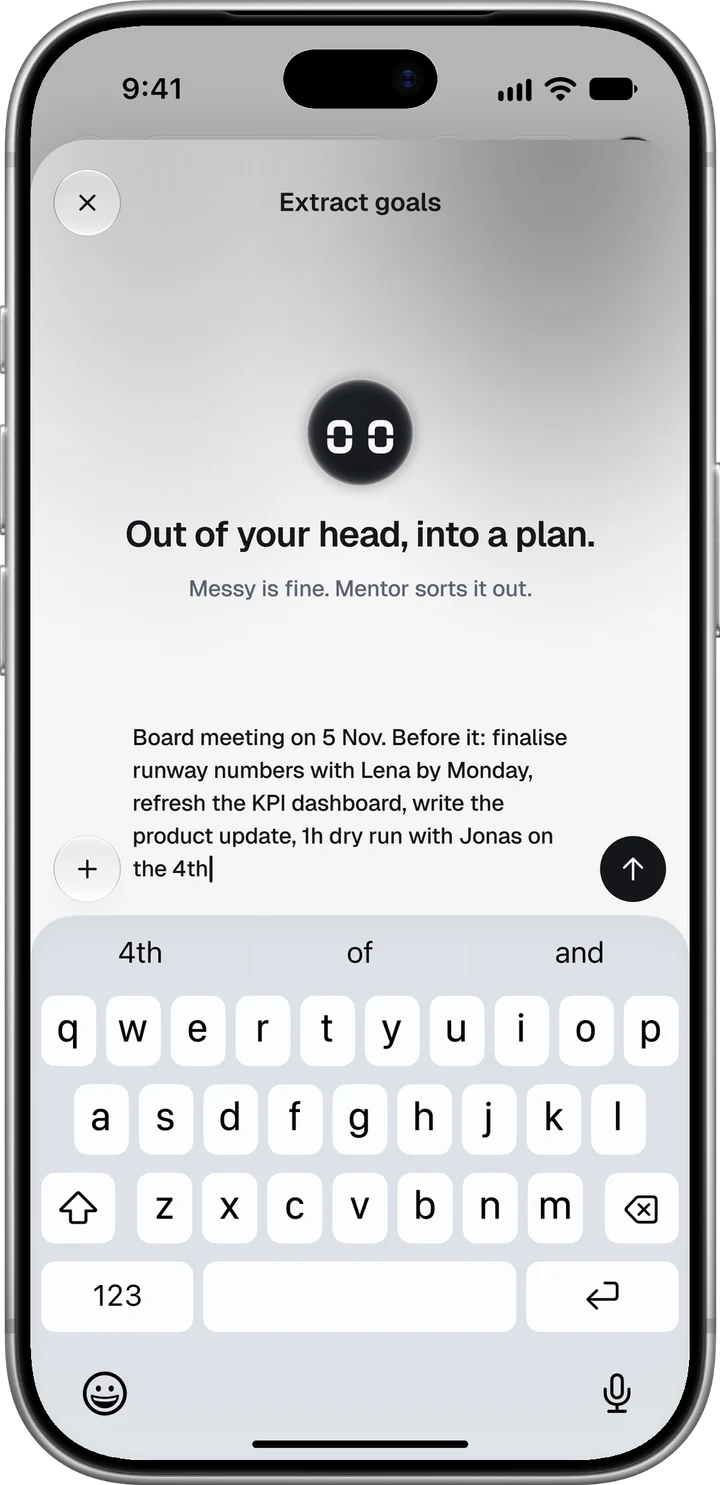
The Mentor shows the result before anything is saved: each goal with its category, deadline and tasks. A field it filled in by itself is marked Filled in, and one it was unsure about Check this. Take out what is wrong, then tap Add.
Fill in a goal yourself
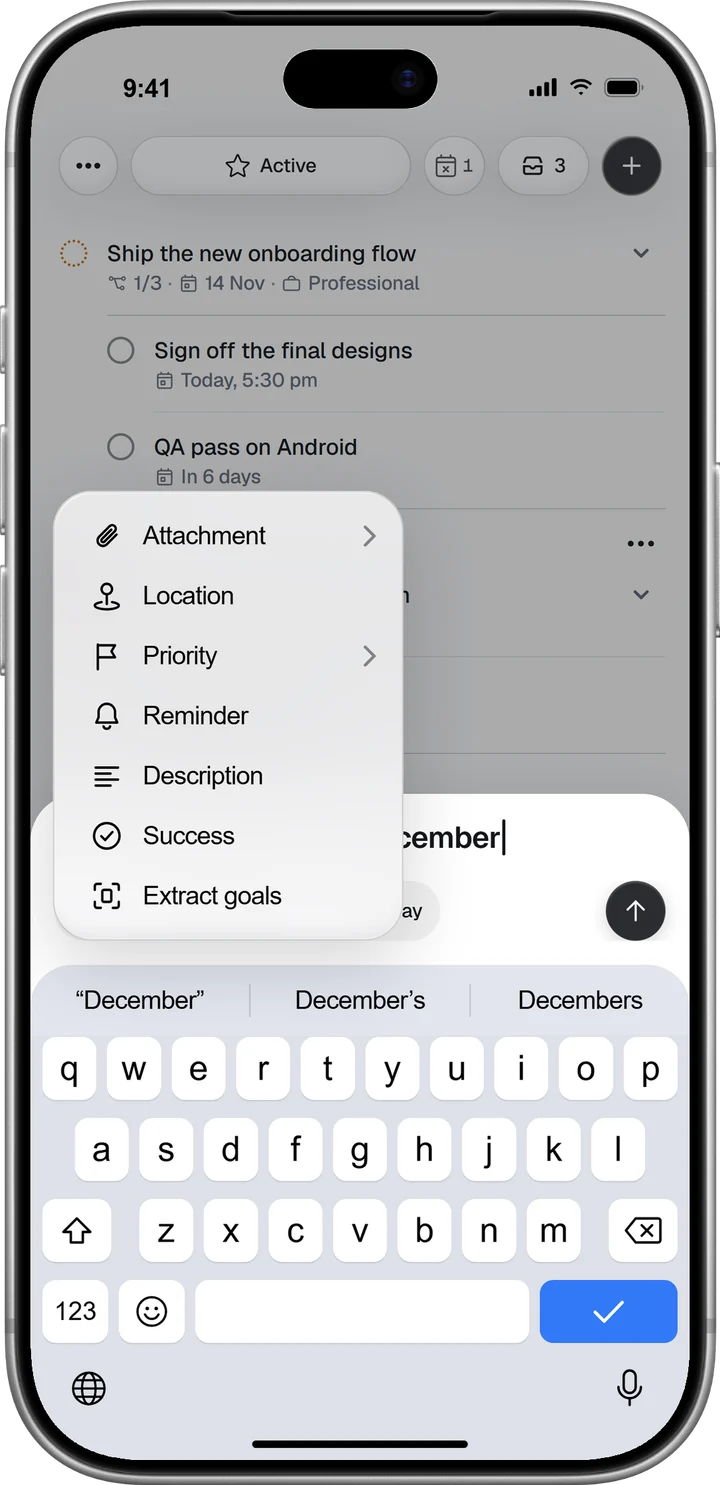
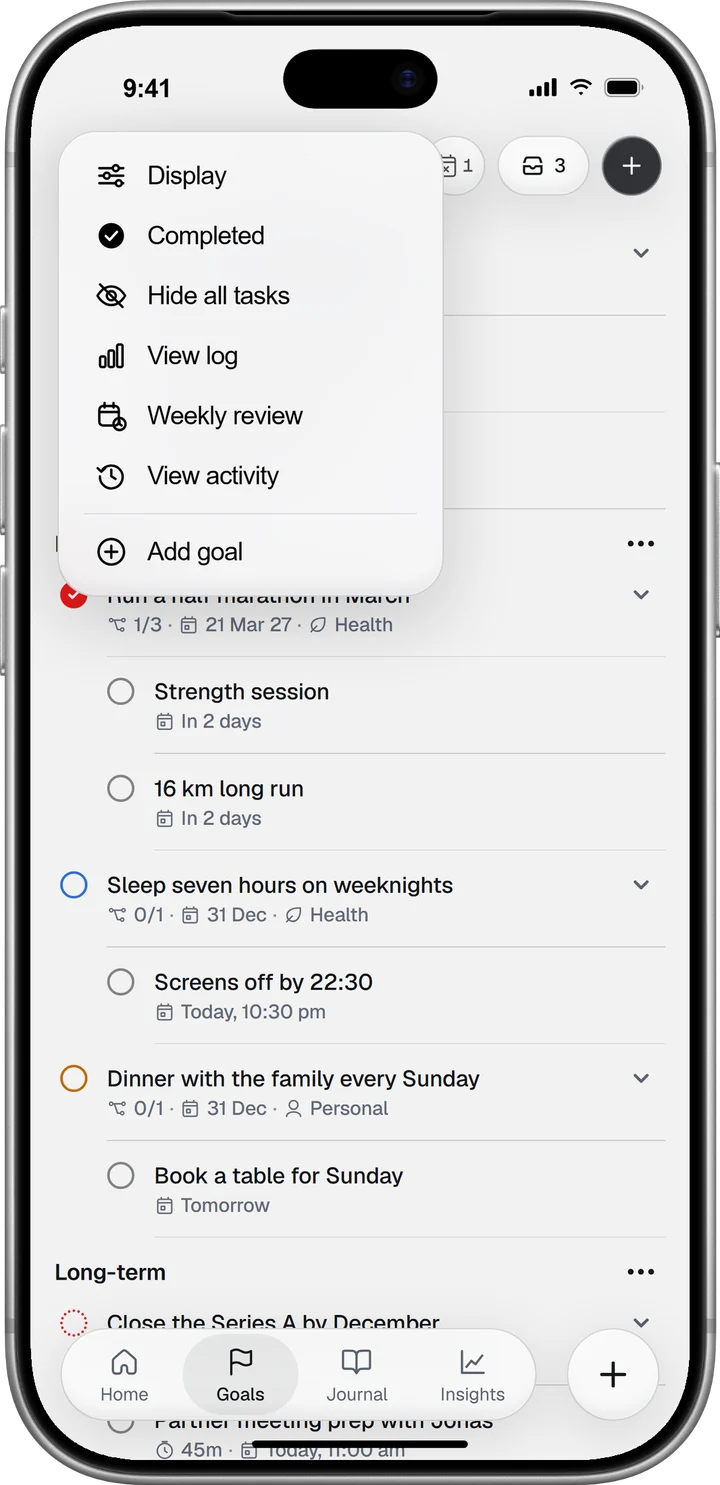
Open the ⋯ menu at the top left of Goals and tap Add goal, or choose Goal from the tab bar’s +. A card opens above the keyboard. Name the goal and check its two tags: the category opens on the last one you used, and the date reads Today until you pick a deadline. Tap the arrow to save.
The + on the card lists the fields still empty: Priority, Reminder, Description, Success for what done looks like, Location for a reminder when you arrive or leave, and Attachment.
Add tasks to a goal
Tap a goal to open it, then tap Add task under its tasks. The task card works like the goal card, with Deadline and Repeat tags in its row from the start.
Tasks that belong to no goal wait in the Inbox. While it holds tasks, the Inbox gets its own tab at the top of Goals.
Give a task a start time and a length
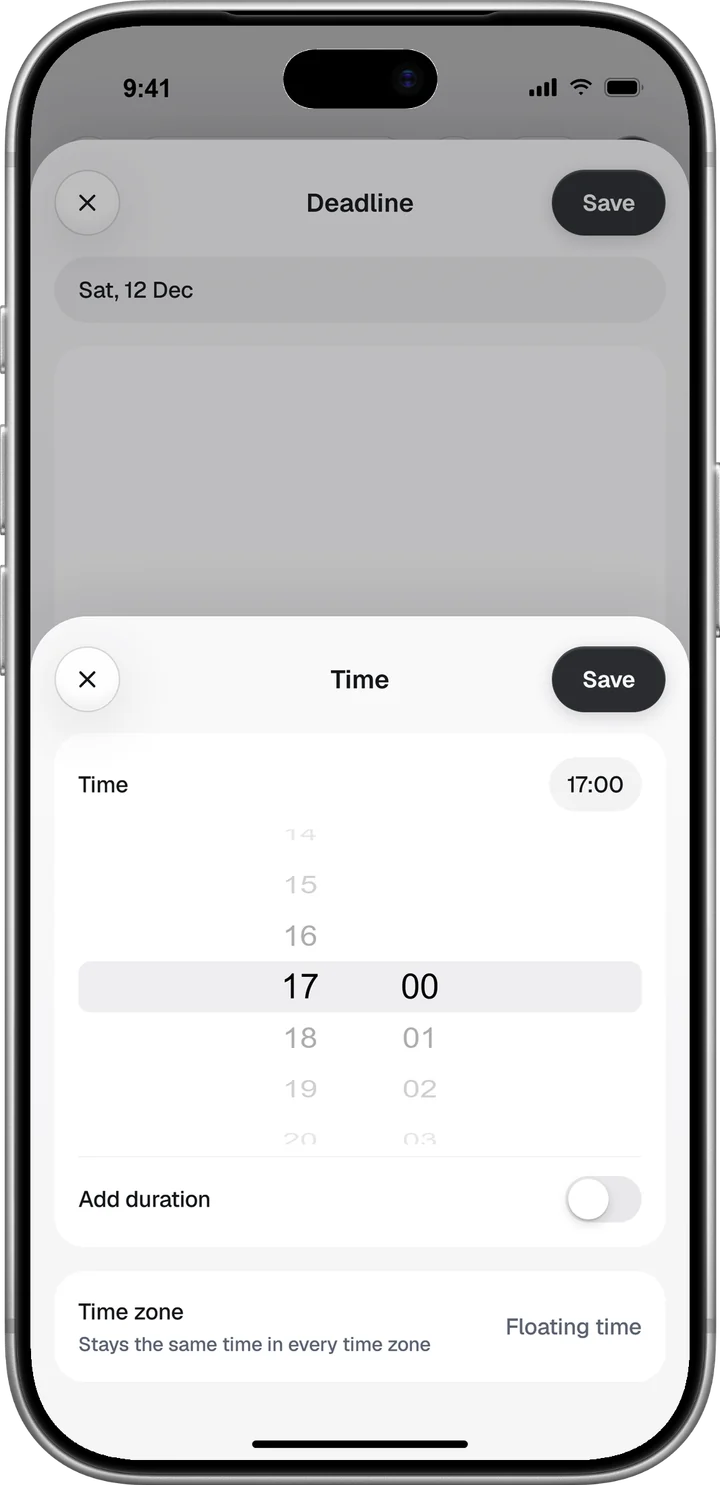
Tap the task’s Deadline tag, pick a day, then tap Time. The Time sheet sets when the task starts. Switch on Add duration to choose its length, in 15-minute steps up to eight hours. Floating time, under Time zone, keeps 9:00 at 9:00 when you travel.
A length is worth the extra tap. The Calendar then shows how full each day is, and the Focus Score weighs your day in minutes.
Make a task repeat
Repeat sits under Time in the same Deadline sheet: every day, every weekday, every week or every month. Custom… covers a rule such as every Tuesday, Thursday and Saturday, with an optional end date.
Set a reminder
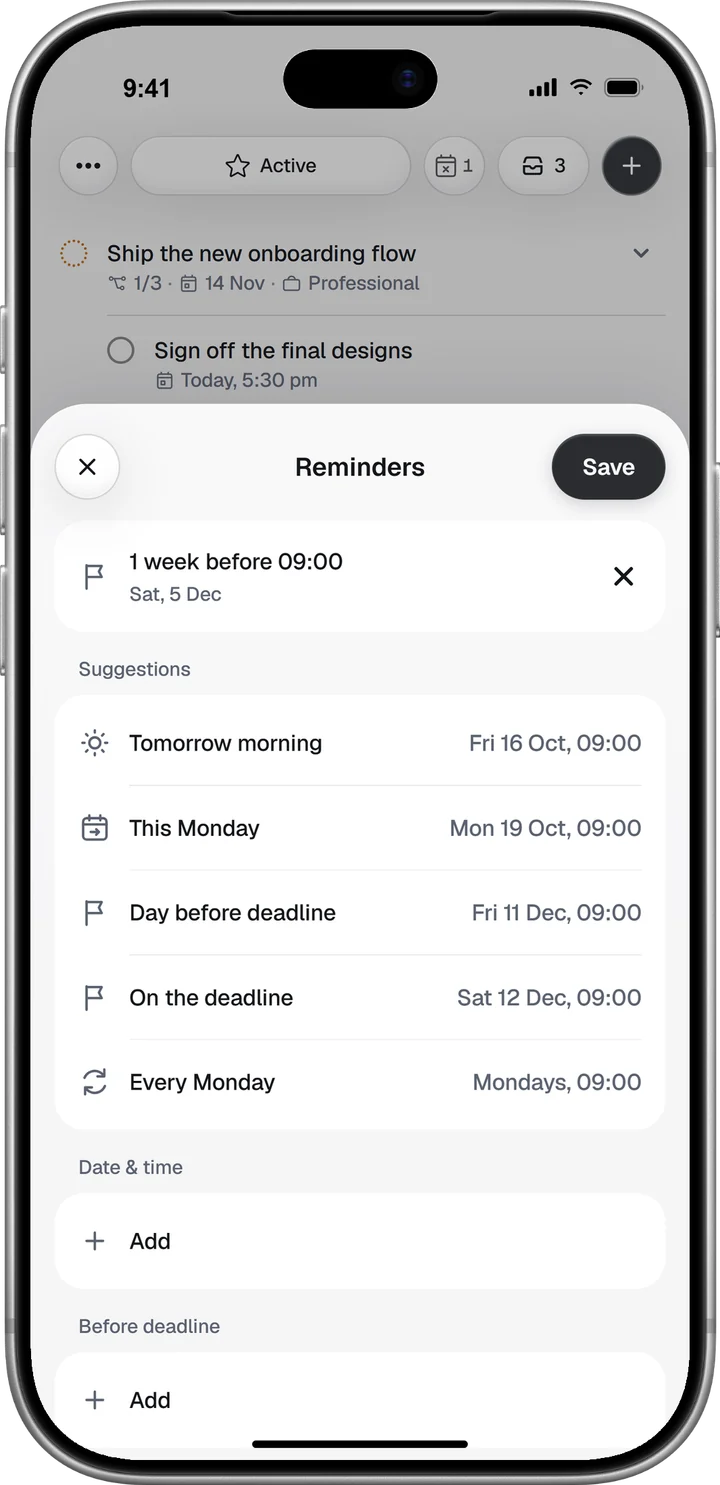
Open the task’s + and tap Reminder. Suggestions such as tomorrow morning or the day before the deadline come first. Date & time sets your own, and Before deadline sets one up to two weeks ahead of it. Goals take reminders the same way.
Switch between List and Calendar
Active, at the top of Goals, shows your goals with their open tasks. Anything whose deadline passes while it is still open moves to Missed, where you can pick it up again. Open ⋯ and tap Display to switch between List and Calendar, change the sort and choose which tasks show.
Your daily routine
Answer Today’s Read in the morning
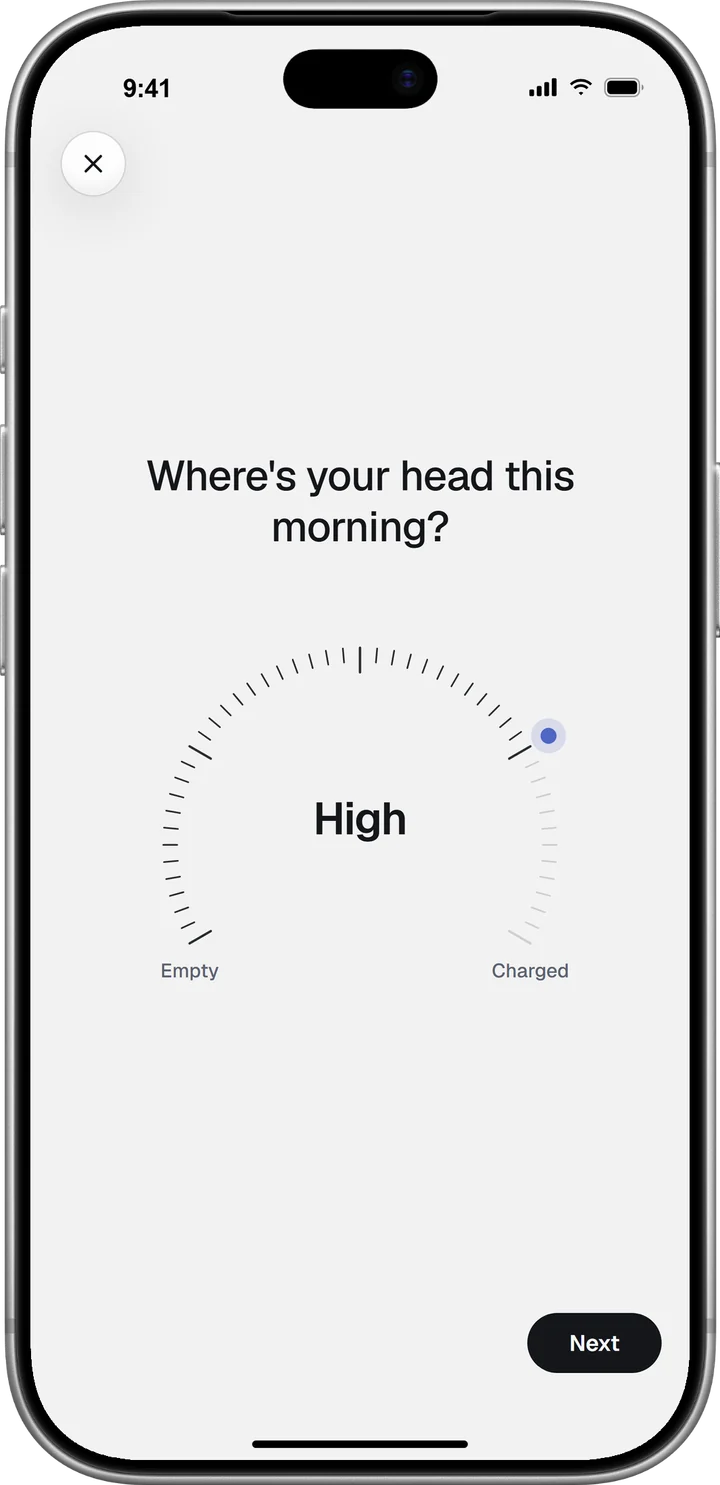
Open Today’s Read from its card on Home, from For today or from the tab bar’s +. It asks about your energy, how clear your thinking is, what today is asking of you and what kind of day it is. Two optional questions follow. Then tap Build my read.
The read names the state of your day, explains it and says what to expect. What now gives your one move. There is one read per day, and a new one opens at 4:00.
Plan your day with Plan My Day
Plan My Day, at the foot of the read, opens a Mentor chat with two to four time blocks for today, each naming a task or goal from your account. Reply to change them, and copy the ones you want to protect into your calendar. Time blocking covers which work should get the first one.
Ask the Mentor
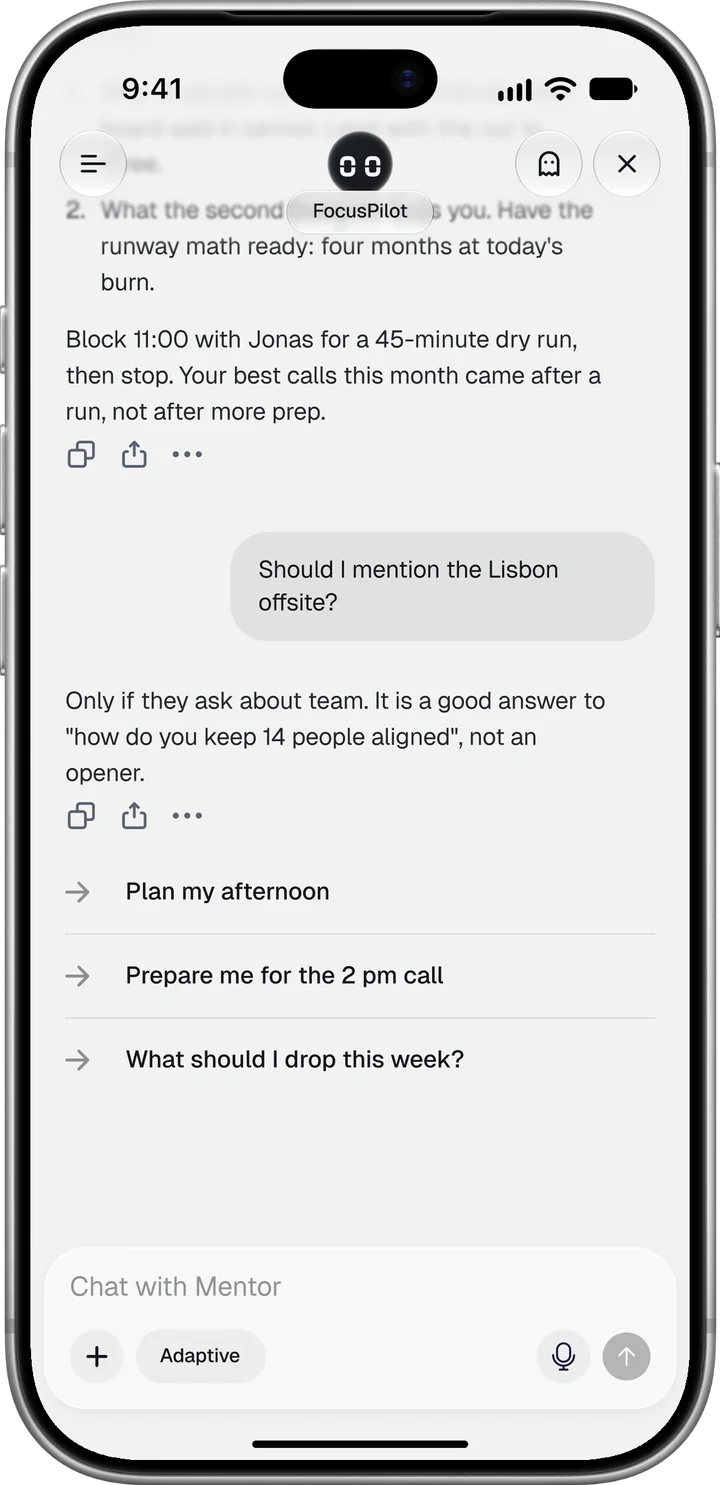
Tap the Mentor bar above the tab bar on Home, or Ask Mentor in the + menu. It already knows your goals and your recent days, so start with the question itself: “What should I cut this week?”
Each reply has copy, share and ⋯ under it, and ⋯ holds Save as Goal and Save to Journal. Your default tone and answer length live in Profile, under Preferences.
Write your first journal entry
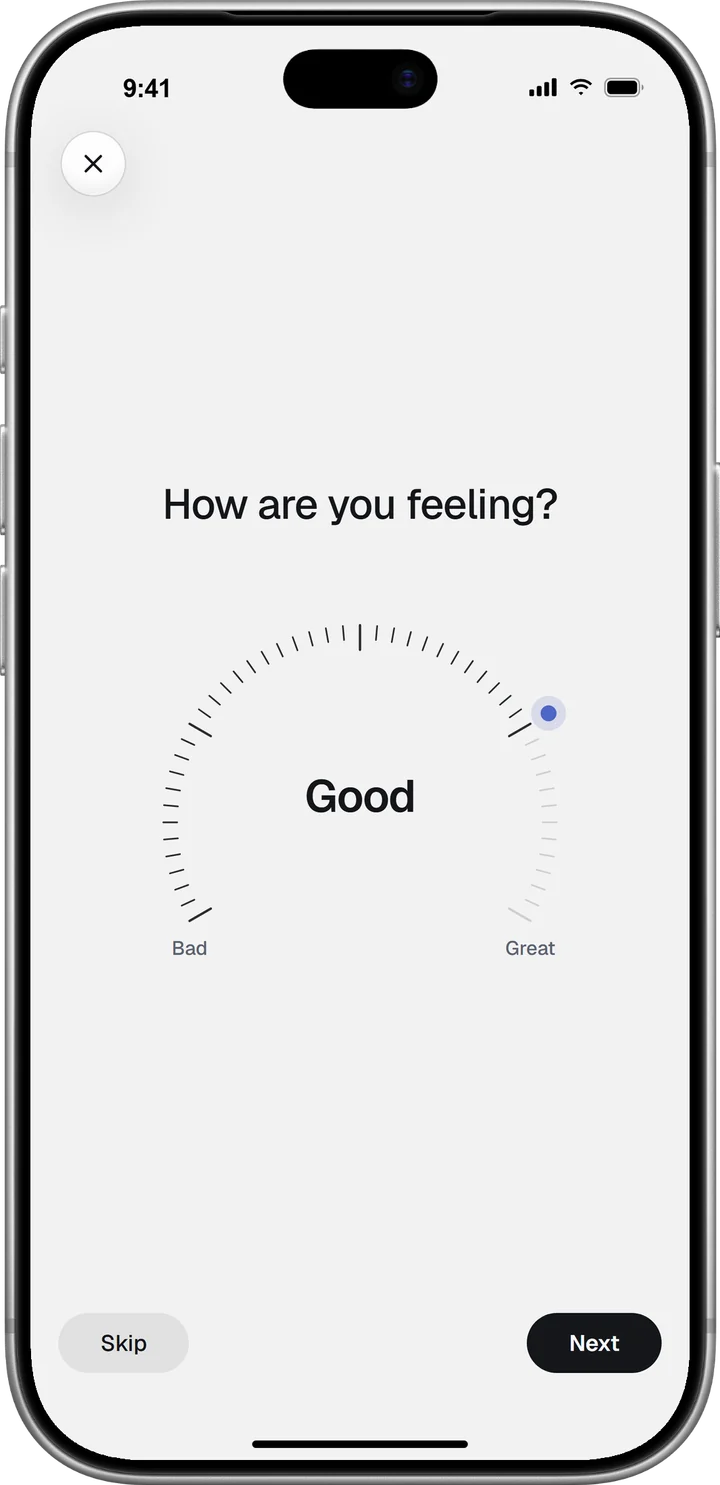
Open the Journal tab and tap the black +. New entry lists eight kinds of page, and Check-in makes a good first one. It asks how you are feeling, your momentum and your main focus for today, and you can skip any of them.
Then write a few lines on how the day went; the + at the bottom adds a photo, a voice recording or a drawing. Tap the check mark to save.
At the end of your first week
Read your Focus Score
Open Insights, the fourth tab. The dial shows the day’s Focus Score so far, with its four parts under it. Tap the dial for the score sheet: each part’s value, the weight it carried and the points it added.
A part with no data is left out, never counted as zero. To raise deep work, run the Timer or Stopwatch from Focus sessions on Home: sessions of five minutes or more count, and one long block scores higher than the same minutes broken up.
The control at the top right switches the whole tab between this week, this month and this year.
Watch for your first Mentor Brief
The Brief reads your goals, your journal, your daily reads and, if connected, your health data. It comes only when more than half of the sources you use agree on a pattern, so the first may take a while. Until then, the Mentor Brief card on Home shows where each source stands.
Run your first weekly review
From your second week, open ⋯ in Goals and tap Weekly review. It shows last week’s hit rate, the split by area and any work that went unclosed more than once.
Settings to check in week one
Choose your notifications
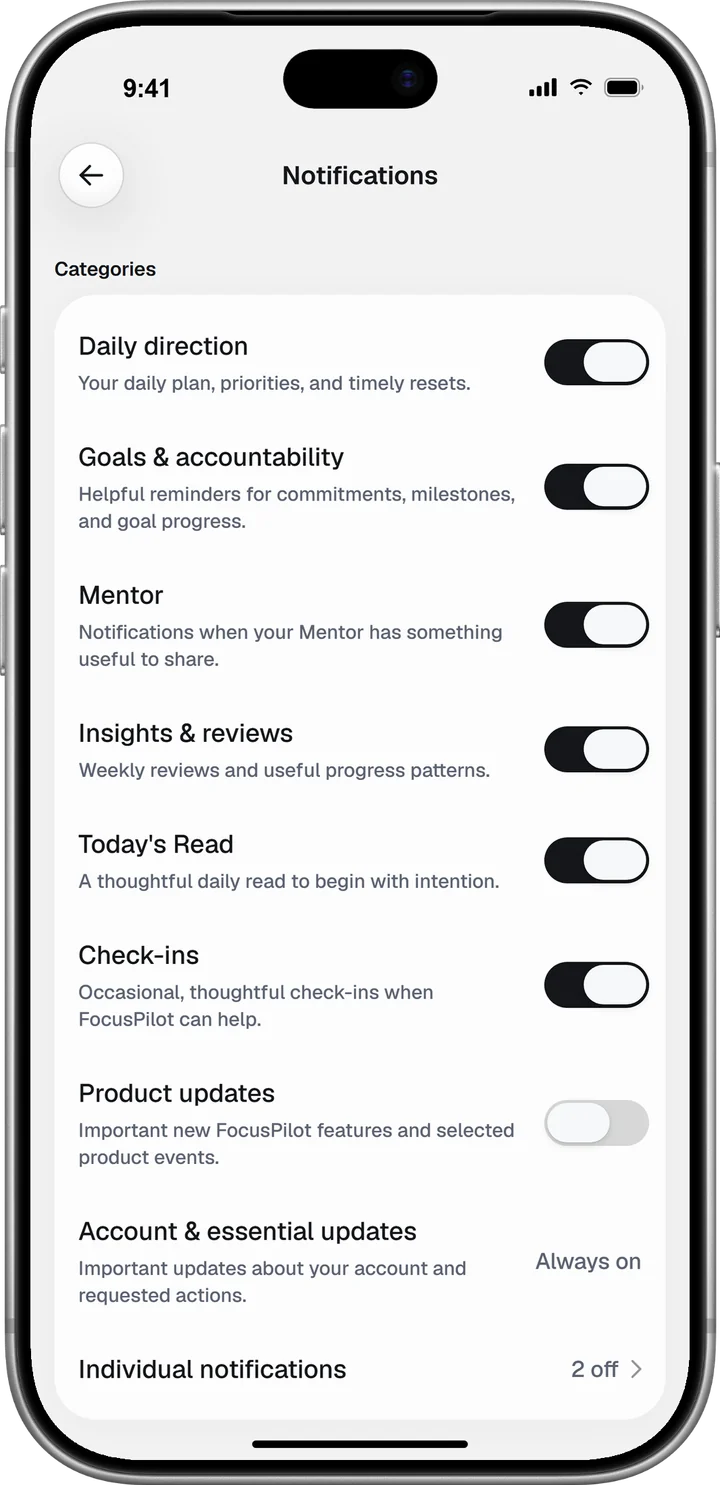
Tap your picture on Home, then Notifications. Each category has its own switch, and Individual notifications turns off one kind at a time. Under Delivery, set the times for your morning plan, evening reflection, Today’s Read and Mentor check-in, plus quiet hours.
Connect your health data later
If you skipped it during setup, open your Profile and tap Apple Health on iPhone or Google Health Connect on Android. On iPhone, Open Health app asks for access. On Android, Open Health Connect takes you to its settings, where you allow FocusPilot under App permissions. Once connected, Insights shows your average sleep per night.
Find everything else in Profile
Profile is one page. General holds Notifications, Preferences and your health connection; Account holds About you, Subscription, Change password and Your data. Under Support, Show tips again brings back the one-line tips the app shows the first time you reach a screen. Preferences is where you change the app language and what the Mentor may read.
Where to go next
Each part of FocusPilot has its own guide:
- Goals and the weekly review
- Today’s Read and Plan My Day
- Mentor
- Mentor Brief
- Journal
- Insights and your Focus Score
For your first weekly plan, weekly planning has a 30-minute routine, and the weekly review gives you its first ten minutes.




