
This guide shows you how to make FocusPilot Today’s Read part of your morning. You answer its questions, read what it says about your capacity and the day ahead, and turn its one move into timed blocks with Plan My Day.
Find Today’s Read
Today’s Read has its own card on Home. Before you have answered, it reads “A few quick answers, then Mentor’s read on your day.” Tap anywhere on the card to start.
You can also tap the + button at the right end of the tab bar and choose Today’s Read. Home’s For today card lists the read too, and ticks it off once it is done.
There is one read per day. A new one becomes available at 4:00 in the morning on your phone’s clock, so a read at 1:00 still belongs to the day before.
The read works from more than your answers. It also uses your goals, tasks and deadlines, journal check-ins, focus sessions, any health data you share, your Mentor Brief and your last fourteen reads. With no goals yet, the deadline and week-ahead parts stay empty, so add a goal with a few dated tasks first (Goals and the weekly review).
Answer the questions
Each question has its own screen: your energy, how clear your thinking is, what today is asking of you and what kind of day it is, then an optional question that changes every day and an optional note. Tap Build my read at the end. The answers each question offers are listed in What does Today’s Read ask?
Energy and clarity are two questions because they often split. A tired but clear morning and a wired but scattered one call for different days, and a single scale could not tell them apart.
Answer for the morning you have. The read takes your energy and clarity as you give them and never infers them. Your clarity answer is also the Mental clarity part of that day’s Focus Score, explained in Insights and your Focus Score.
Read the page from the top
The example is Ada, our demo account, who leads product at a fintech company. This is her read for Thursday, 15 October.
At the top are the date, the reading time and the name of the day’s state, here Strategic Momentum, with one short line under it. The dial below runs from Overloaded on the left to Recovered on the right and shows a score out of 100. Its four bands are Overloaded, Stretched, Balanced and Recovered. The further right the dial sits, the more room the day has.
Under the dial, one sentence describes the day and a second one gives the evidence.
The Your answers section comes next, as a table of this morning’s answers. Once you have answered on three of the last fourteen days, a grid of those two weeks appears under the table.
Today lists goals with a deadline close by, and anything the read noticed across your data, such as a goal with no progress for several days. A finding appears only where two sources agree. Why then gives the cause of today’s state in full.
What to expect has one sentence on the shape of the day, then the week ahead: today’s tasks planned, done and open, how many tasks are due on each of the next seven days, and the deadlines by name. The pattern underneath describes what keeps repeating in your recent reads. In your first days it says it is still learning your rhythm.
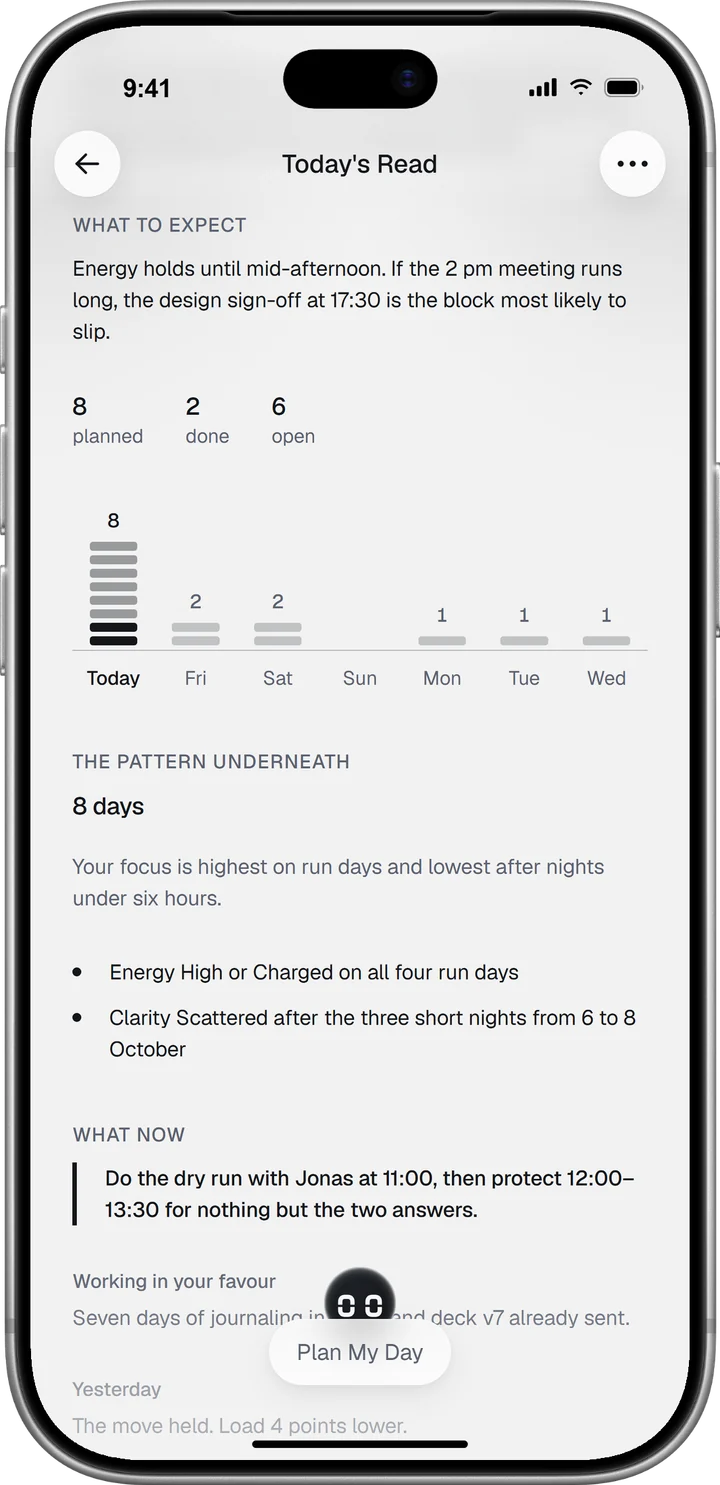
What now is the one move for today, with Working in your favour under it: something you can use. Read it last, because everything above it is the reasoning that leads there.
Most sections appear only when they have something to say. A day without a read stays an empty cell on every chart.
At the very end, For your journal asks one question. Write about it opens a new journal entry with that question as its title (the Journal guide).
Turn the read into a plan with Plan My Day
Plan My Day is the floating button at the foot of the read. Tap it, and Mentor chat opens with your plan as the first message.
The plan has a fixed shape. One or two sentences name the day’s situation, a line starting “Strategic mode:” names the approach, and “Today’s priorities:” lists two to four numbered blocks. Each block gives a time window, a task or goal from your account by its exact name, and the reason for it. A short rationale and one closing line or question end the plan.
Times start from the clock on your phone: plan at 14:00 and the morning is left out, plan in the evening and the priorities are tomorrow’s. The read’s move gets the first block that fits, unless a task due earlier today has to come first.
A shortened example for Ada’s Thursday:
Strategic mode: Prep first, sign-offs late.
Today’s priorities:
- 09:00 to 10:30, ‘QA pass on Android’, before the inbox opens.
- 11:00 to 11:45, ‘Partner meeting prep with Jonas’, ready for Northwind at 14:00.
- 16:00 to 16:30, ‘Get budget sign-off from Lena’.
Under the plan, Mentor offers three follow-ups you can tap. To change the plan, reply in the chat, for example to move a block to tomorrow.
The blocks live in the chat, so copy the ones you want to protect into your calendar. Time blocking covers how to keep them from being booked over.
Talk it through with Mentor
A small Mentor figure peeks out above Plan My Day. Tap it to open Mentor chat on this read.
Use it when a line does not match how the day feels, or to test the move before you commit. Mentor has the read in front of it, so start with your question: “What would make today a Balanced day?” More in the Mentor guide.
Refresh or start over when the day changes
The three-dot button at the top right of the read opens its menu. Quick Refresh keeps your answers and reads your data again, for example after a meeting moved or a task was closed, and takes about half a minute.
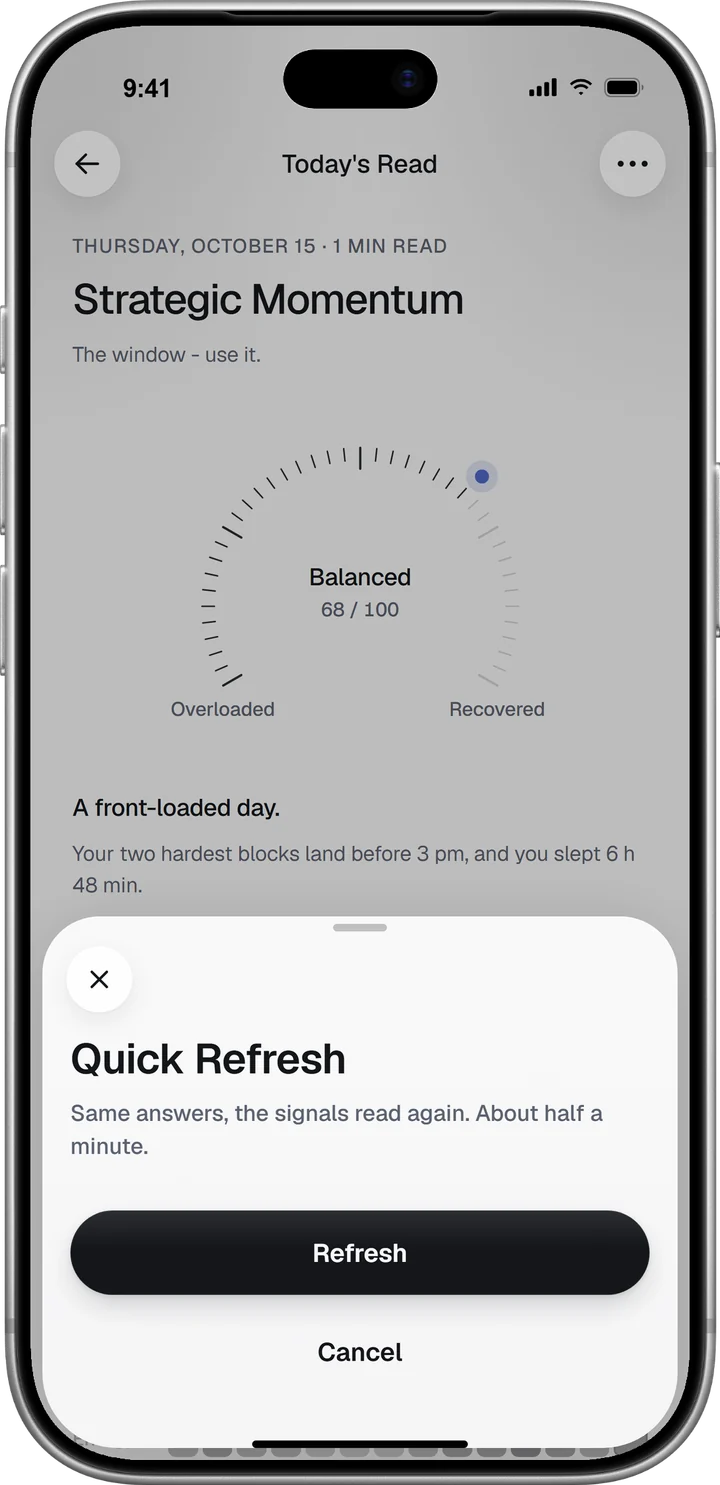
Start over replaces the read, and the questions begin again from the first one. How often you can use each, and the other two items in the menu, are in How to read your Today’s Read.
What the read uses from your health data
If you connect Apple Health on iPhone or Health Connect on Android, the read can use last night’s sleep, yesterday’s steps, your resting heart rate and your heart rate variability. Each is compared with your own seven-day average and appears as a plain number, such as the hours you slept. The read reports these numbers. It does not interpret them medically.
Without a health connection, the read works from your answers and your work in the app.
Your answers keep working after the read is done. Over fourteen days they shape the patterns in later reads, and on the Insights tab they feed two of the three drivers of your Trajectory.




