
This guide shows you how to use the FocusPilot Journal for your work. You check in before you write, choose the kind of page that fits, let Mentor question your thinking, record decisions to review later, and find any day you wrote.
Find your way around the Journal tab
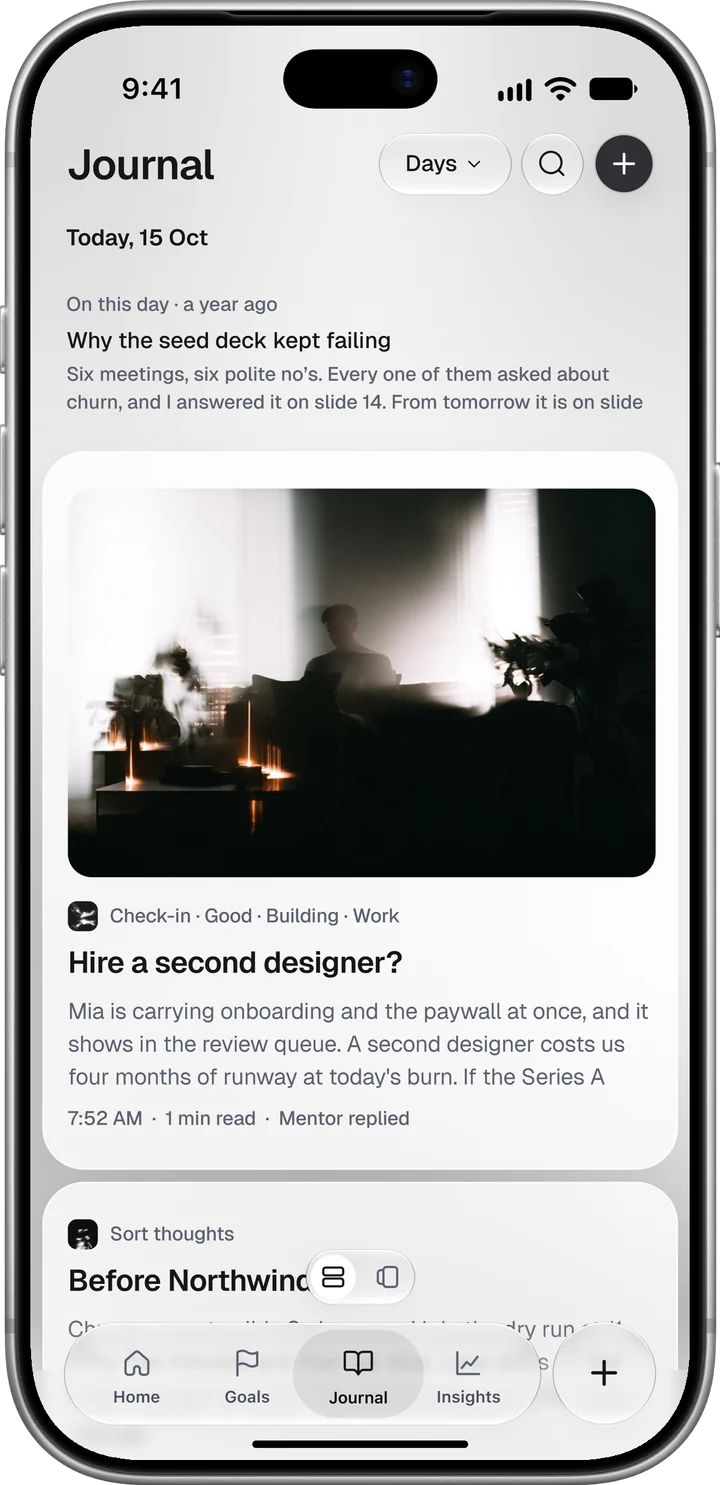
Journal is the third tab. Its top bar has a time frame menu, set to Days in the screenshot, a search button and a black + for a new entry.
The Days view shows one day at a time and opens on today. Swipe left and right to move between days. On today’s page, On this day brings back an entry from a month or a year ago, when there is one.
A day’s entries form a stack, newest in front. Swipe up to send the front entry to the back. The switch at the bottom of the screen turns the stack into a list with the entries one under another.
Press and hold an entry to edit or delete it.
Start with the check-in
The check-in asks three questions before the page opens:
- “How are you feeling?” from Bad to Great, on five steps.
- “How is your momentum right now?” Stalled, Building or On fire.
- “What’s your main focus for today?” One of nine areas, such as Work, People, Learning or Rest.
You can skip any question; a skipped one records nothing. The first two turn the page as soon as you tap, and on the third you tap Next to open the editor.
Your answers appear at the foot of the entry card, and search finds them: searching for Building lists the entries where you answered Building. To add a check-in to an entry you already wrote, open it and choose Check-in from its three-dot menu.
The check-ins add up over time. The Insights tab turns them into a Breakdown of your most common answers, and Today’s Read uses them when it reads your day (Insights and your Focus Score).
Choose the kind of page
Tap the + at the top right of the Journal tab to open New entry. It lists eight kinds of page, and each one opens the editor differently. You can reach the same list from the + button at the right end of the tab bar by choosing Journal.
- Check-in. The three questions, then the page.
- Today’s prompt. A prompt that changes daily. You can use its line as the entry’s title or add it to the entry as a quote.
- Free writing. An empty page with no title field.
- Mentor’s topic. Mentor reads your week and opens the page with a topic. If it cannot, the page opens empty.
- Reflection. Three quick questions first: the moment, the lens to look at it through, and what you hope to take from it.
- Sort thoughts. Everything down, no title and no check-in. Mentor helps you put it in order afterwards.
- Decision. What you decided and why, with a review date. See the decision section below.
- Note. Something to keep, nothing more.
The first five start with the check-in questions. Sort thoughts, Decision and Note go straight to the page.
Write, record and attach
The editor has a title and a body. The + in the bar at the bottom adds media: Open camera, Record audio, Gallery or Drawing. Attachments appear above the title, and past four of them the tiles get smaller while the block keeps its size. A voice note shows its own waveform with a play button.
Aa opens the formatting options. A second button in the same bar adds a heading, a bullet or numbered list, a checklist or a quote.
Tap the check mark at the top right to save. The editor closes at once and the save finishes in the background. If it cannot reach the server, the entry stays on your phone and the overview shows it as not saved yet, with Retry. The draft is kept until it is saved or you discard it.
Let Mentor question your thinking
On a check-in or prompt entry, the Mentor button at the top of the editor offers three actions: Go deeper, Help me reflect and Challenge my idea. Mentor’s text enters the entry in a different ink from yours, so you can always tell which sentences are your own.
On a Sort thoughts page the Mentor button sits at the bottom right and works on your own text instead. Structure thoughts and Clarify a decision add an editable block, Find my next move adds one line, and Clean up writing replaces your writing with a tidied version.
Two more settings sit next to it in Preferences. Journal in Mentor chat lets your check-ins and journal signals shape the Mentor’s replies. Journal for the Mentor Brief lets the Brief read your entries from the last 14 days and keep what comes up more than once; the text itself is not stored. More in the Mentor guide and the Mentor Brief guide.
Record a decision and review it later
A Decision page starts with the question at the top: “What decision are you trying to make?” The page has three sections you can open: Reasoning & assumptions, What could change my mind? and Expected outcome & review. The + adds an option, so you can list the choices you are weighing.
Decision tools, at the bottom right, has seven ways to test the thinking before you choose, from Clarify the decision to Define a reversible test and Prepare the conversation. You decide what to keep from each answer: insert it below, add it as an option, or dismiss it.
When you are ready, tap the check mark and choose Mark decided. Record your decision asks for the decision, why it is the best call now, your confidence (Low, Medium or High) and a review date: In 1 week, a date you choose, or No review needed. Save draft keeps the decision open.
On the review date, FocusPilot sends one notification at 9:00 if notifications are on. When you open the entry, a review block waits at the top. It reads your decision back to you and asks what happened: Better than expected, About as expected, Worse than expected or Still unfolding. Two optional lines follow, what you learned and what you would do differently next time.
Only the outcome is required, and Later puts the review away without saving anything. The review is saved with the entry, and the decision’s summary then shows the call, the options you considered and how it turned out.
Find any day you wrote
Search looks through your entries and the page templates. It matches titles, text and check-in answers.
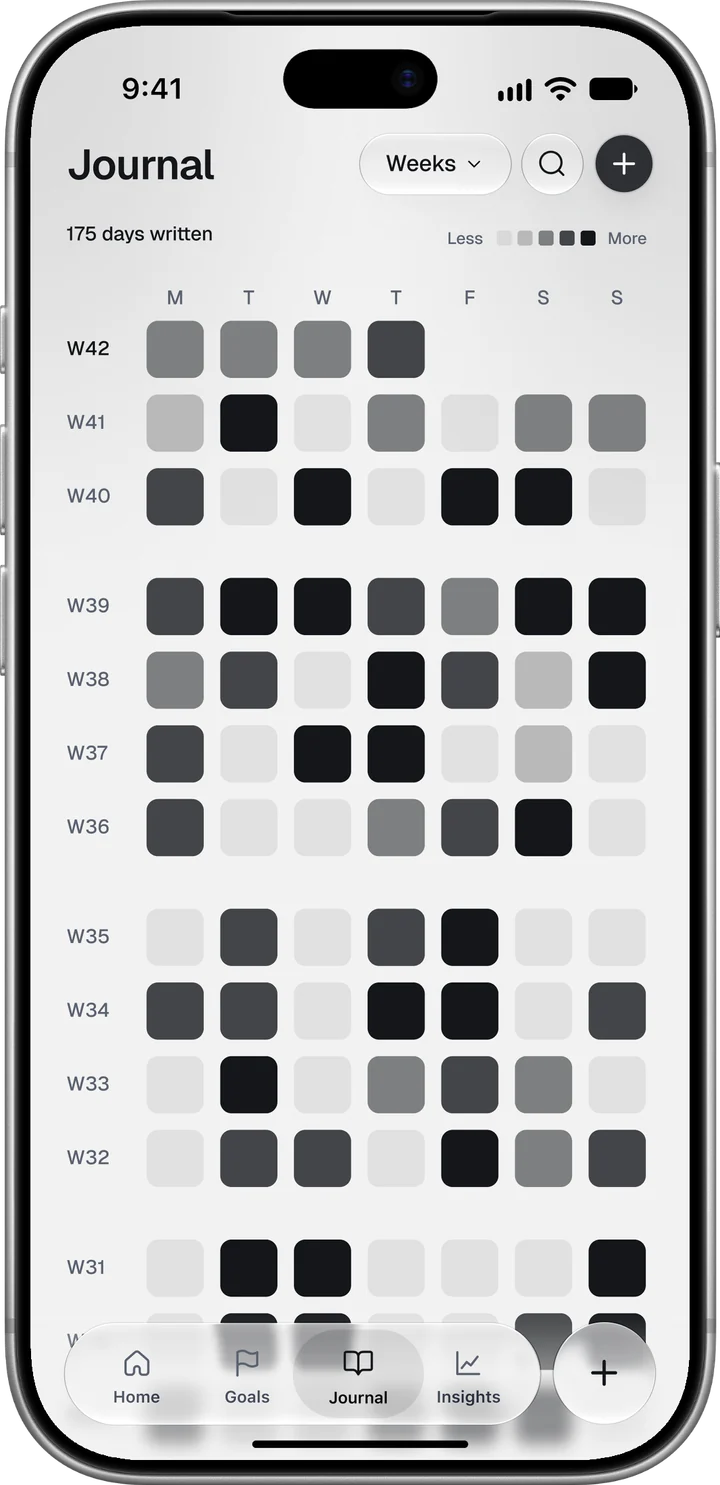
The time frame menu switches the overview between Days, Weeks, Months and Years. Years shows the whole year as a field of squares, darker where you wrote more. Touch and drag across it to read a day, and let go on a written day to open it. Swipe sideways for other years.
A weekly look back at your entries fits naturally into a weekly plan. Weekly planning shows one way to set that up, and Today’s Read brings one question a day to the journal through its For your journal line.




