
This guide shows you how to use the FocusPilot Mentor: open a chat, ask about your week, hand it a file, turn a reply into a goal or a journal entry, and set how it answers. It ends with what the Mentor reads and how to reset its memory.
Open a chat with the Mentor
Tap the + button at the right end of the tab bar and choose Ask Mentor. The chat opens with the keyboard already up. On Home, the Talk to Mentor row in your For today list opens the same chat, and Plan My Day in Today’s Read brings you here with a plan for the day already written.
A new chat shows the date, a short greeting and a row of shortcuts. Swipe the row sideways to see all seven: Create a goal, Create a journal entry, Plan my week, Review a goal, Reflect on today, Think through a decision and Prepare for tomorrow. A tap sends that request as your first message.
The X at the top right closes the chat. Your conversation is kept, and you can open it again from the chat list.
Ask about your week and your goals
The Mentor answers from what you already keep in FocusPilot. It sees your active goals and the tasks due today, your recent Today’s Reads and how your last days went. With the journal switch on, it also sees your check-ins. If you connected Apple Health or Health Connect and allow it, a summary of your sleep and recovery is part of the picture too.
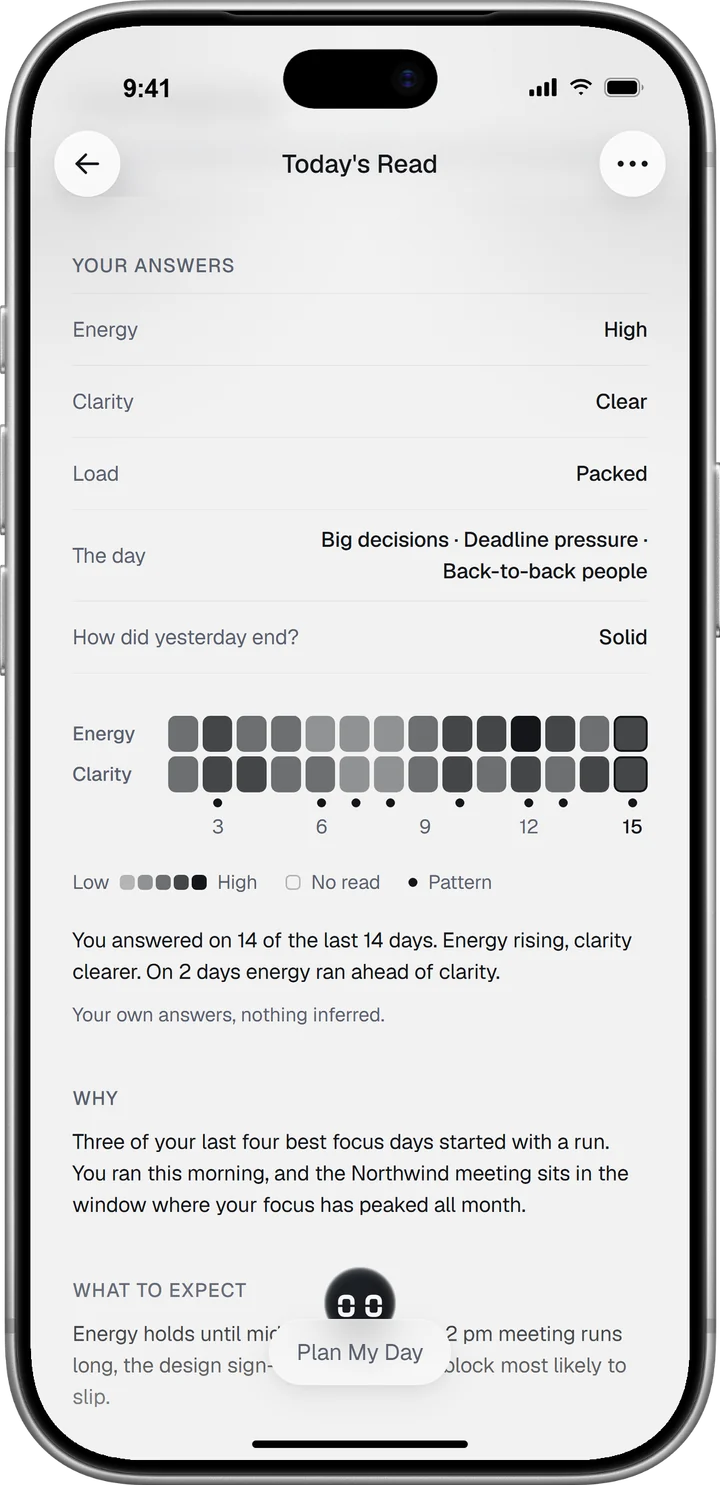
So you can skip the background and ask the question. A few that work well:
- What deserves my time today?
- What should I cut this week?
- Show me what’s blocking me.
- Help me prepare for tomorrow’s board meeting.
The + menu next to the message field has two ready-made requests. Bring me up to speed asks for a summary of where you stand, and What’s next? asks for the next thing to do.
Give it a file, a photo or your voice
Tap + next to the message field and choose Camera, Gallery or Attach a file. The Mentor reads PDF, Word (.docx), Excel (.xlsx), CSV, plain text and Markdown files, and images. Send the deck for Thursday’s pitch and ask what it means for this week’s goals. If a file type is not on that list, or the file is too large, the Mentor tells you in the chat and you can send a smaller part.
To speak instead of typing, press and hold the microphone and talk. Let go, and your words are transcribed into the message field and sent without another tap. Changed your mind? Swipe left while you hold.
Turn a reply into a goal or a journal entry
Under every Mentor reply sit three icons: Copy, Share and ⋯, which opens Save as Goal, Save to Journal and Report response. Save a Mentor reply as a goal or journal entry covers each one step by step.
Save as Goal reads the reply and the conversation before it, then creates one goal with its tasks, dates and priority filled in. A panel drops from the top of the chat with the new goal exactly as it looks in Goals. Tap Open to go to it, or Undo to remove it.
Save to Journal saves a new entry with the Mentor’s text quoted in its own grey ink, so it never reads as your words. The first sentence becomes the title. Tap Open in the panel, then Edit, and write your own thoughts under the quote. More on entries is in the journal guide.
You can also ask in plain words: “Create a goal to ship the pricing page by Friday.” The Mentor sets it up and the same panel shows the result with Open and Undo. If you ask it to change a goal you already have, it shows the change for you to confirm before anything is saved.
Set how the Mentor answers
Your account setting lives in Preferences. Tap your picture at the top right of Home to open your Profile, then Preferences. Under Mentor, set Mentor tone to Balanced, Direct or Gentle, and Answer length to Adaptive, Short or Detailed. These apply to every chat.
To change one chat only, tap the chip next to + in the message bar. It shows the chat’s mode, Adaptive by default, and opens the Mentor style sheet. Mode switches between Fast, Thinking and Adaptive; Thinking takes longer and goes deeper. Mentor tone and Answer length each start with As in Preferences, which keeps whatever you chose for your whole account in Preferences. Journal in this chat is a switch for this conversation alone.
Any choice other than As in Preferences stays with that chat until you change it. A request inside a message wins for that one reply, so asking for a quick answer gets you one even when the chat is set to Detailed.
Find, rename and delete past chats
Tap the menu button at the top left of the chat to open your chat list. Search sits at the top, New chat at the bottom. In between, your chats are grouped under Pinned, Today, Yesterday, Previous 7 days and Older.
Press and hold a chat to pin, rename or delete it. Pinned chats stay at the top of the list, whatever their date.
Choose what the Mentor can read
Profile, then Preferences, holds the switches that decide what reaches the Mentor.
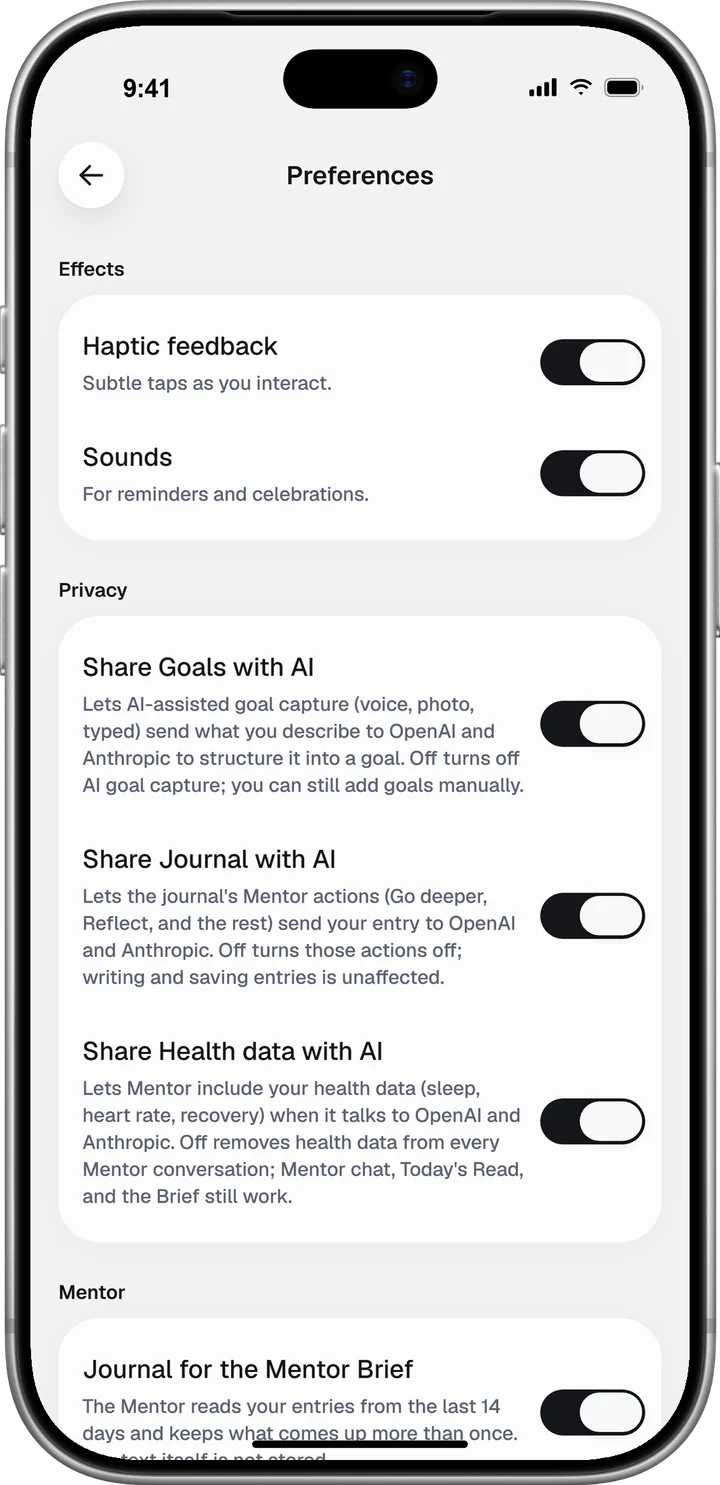
Journal in Mentor chat lets your check-ins and journal signals shape the Mentor’s replies. Entries are never quoted unless it clearly helps. Turn it off and the journal stays out of every chat. For one conversation only, use the Journal in this chat switch in the Mentor style sheet.
Share Health data with AI, under Privacy, removes your health data from every Mentor conversation when it is off. The chat, Today’s Read and the Mentor Brief keep working without it. How FocusPilot uses AI, and how to turn it off has the steps for each Privacy switch.
Reset Mentor memory deletes every chat with the Mentor, and it starts again without a history of your conversations. Your journal, goals and check-ins stay. The app asks you to confirm before anything is deleted.
When your goals, journal and days point to the same problem, the Mentor writes you a Brief. The Mentor Brief guide shows how to read one and turn its plan into a goal.




